
Families
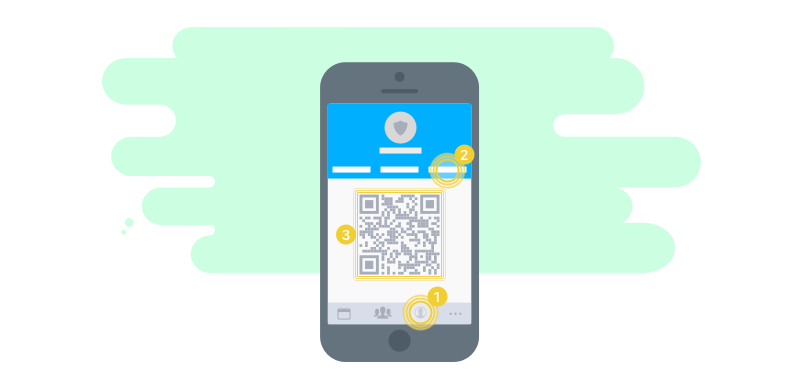
Families are a subsection of the User tab. In this section you can manage family members. Family members are a useful extension that lets you, as a parent, keep track of your children's events, or lets you give your children access to their events.
Linking a child with a parent
The current procedure is that your child installs the myteam app and registers with myteam using the registration code from their coach. As a parent, you also install the app and register by creating a new team (after linking with your child, you can delete the team again). Now proceed as follows:
-
Your child opens the User tab, goes to the Family section and taps Generate join QR code there.
-
Your child is now shown a QR code.
-
You also open the User tab and the Family section. Then, below your listed family, tap Scan join QR code (this requires that you allow myteam to access the camera).
-
Now scan your child's QR code and follow the on-screen instructions.
-
Then go to the Details section and pull it down to refresh the list of linked members (in case your child is not already listed there).
-
Tap your child to move around in myteam as your child.
More ways to grow your family will follow shortly. You will then also be able to create user accounts for your partner and children from within your family.
Adding a new family member
As the head of the family, you can add more family members from within your family. These are automatically parents (or adults). By entering a name and an e-mail address, a new account is created and the new family member can be invited.
As soon as the family member has completed the account, they automatically have access to all children of the family. Other members are not visible (but these will also be shareable shortly).
Push notifications sent to a child in a family are automatically forwarded to all parents/adults of the family as well. This way, everyone is kept informed.