
User
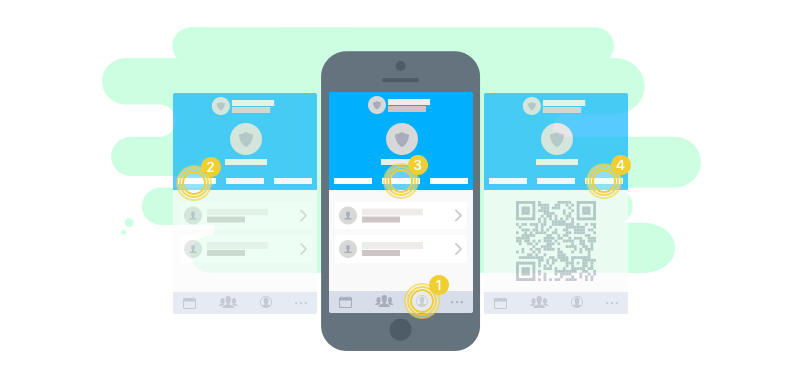
The User tab (1) also brings together the settings for Teams (3) and Families (4), since these are closely tied to your user. The user itself only takes up a small part. When you open the tab, the first section, Details (2), shows all members linked to you. Your user is essentially an anchor for several members. You can be connected to members in many teams at the same time. If you are new or only work with a single member, that member is shown there. The blue bar on the left indicates which member is currently your active one, i.e. the one you are working with. This means that all views under the Events and Team tabs refer to this member. Permissions also apply to this member.
If you want to switch members, simply select the one you want from the list here, or just press and hold the User tab and the list of all members will open.
At the top of the navigation bar you always see the current member and the corresponding team that is currently selected.
Of course, you can also link additional members here. Simply use the registration codes you created in the Team section.
You can also change your name and your user photo here. To change your name, tap the edit button at the top right of the navigation bar; to change your user photo, tap the photo. When you join somewhere as a new member, these two values are used as defaults. If you want to change them, you can overwrite the values for the member in the team list.
Your devices
Further down, all devices you are using or have used myteam with are listed. Push notifications are sent to these devices. You can also see when you were last active on each device. If you no longer want to use one of these devices, you can delete it with a swipe gesture to the left. You will automatically be signed out of that device and will no longer receive push notifications there.