
Team
Under the Team tab you will find all your team members. In the list of existing members, all members are sorted by roles. Since each member can have multiple roles, they are listed in every group they belong to.
If you scroll further up in the list, you will find buttons for the individual roles. For a better overview, you can show or hide roles. Private roles are hidden by default (you can find more about private roles below)
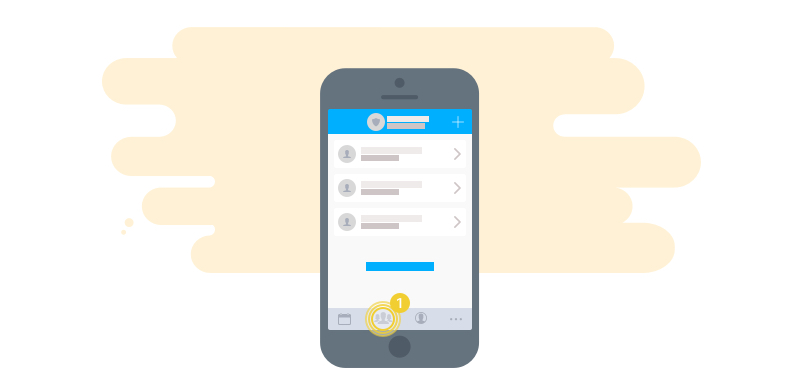
To get you started, we have already set up the roles coach, supervisor and player for you. If you need additional roles or want to change the existing ones, you can do so at any time in the Teams section. The permissions for the members of each role are also defined there.
You yourself are automatically added as a coach when you register a team or create another one. If you remove yourself from the team, you still remain the owner and can continue to access it administratively.
Adding members
There are two ways to add members to your team. You can either create the members individually (as described below) or invite them to register themselves (see here).
To create a member, tap the (+) icon at the top right and enter the member's details. Many fields are optional. The required fields are marked with a red *.
-
Player name: Defines the member's name
-
Roles: Every member must have at least one role. You can also assign several (e.g. player and treasurer). The selected roles also define the member's permissions. With multiple roles, the sum of all permissions applies.
-
Phone number: The phone number where the member can be reached (personal data)
-
Birthday: The member's birthday (personal data)
-
Jersey number: The member's jersey number
-
Position: The member's position (e.g. forward, left back, …)
Once a member has been created, you can tap the player picture in the detail view to select a player picture from your smartphone or take one with your camera.
If you don't have permissions to manage the team yourself, you can only view the members. In that case you are not allowed to add or edit any. However, you can always change your own (personal) data.
Personal data
We consider your personal data important. Currently this includes your phone number, the email address you registered with, and your birthday. This data can be viewed by you and by your team manager (e.g. coach). This data is NOT shown to other members of the team. Even though most team members probably know it anyway, there may be things you would rather not share with everyone. The coach, however, usually needs this data for regular match operations and/or to be able to contact you.
Statistics
From a member's detail view you can access their statistics. Extensive statistics are kept there on invitations, acceptances/declines, attendance, tasks taken on and match highlights. You can decide which time period should be covered. Statistics are generally only visible to team managers and the member themselves. Other players cannot see, for example, another player's attendance.
For highlights and tasks taken on, the statistics also automatically calculate a rank and display it.
Inviting an individual member
If you want to give the new member access to myteam, select the Link tab in the member's detail view. There you can generate an individual invitation code and share it with the member (SMS, email, WhatsApp, …). Your member can use the code when signing up for myteam and will be automatically linked to this entry. From then on, the member manages themselves. The email address used in the process is shown to you so you can get in touch. The email address used here also counts as personal data.
As a team manager you can remove the link again at any time. That way you keep access to the entry, while the user behind it can no longer manage or view the member.
Inviting members
At the end of the team list you will find a button invite new members. Then choose which group you want to generate a code for. myteam automatically jumps to the respective role in the team management. There you can generate the code and share it right away. Anyone who receives this code can use it to register with myteam, which automatically creates the corresponding team member. In the role's detail view you can also renew the code if it has expired.
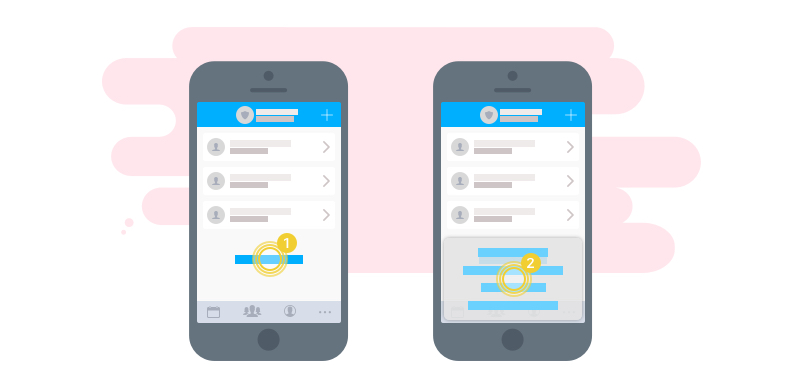
Anyone who has been assigned a role with the Can edit team permission can add, edit, delete and invite team members. These team managers can also view personal data. Other members only see the general data. Every member can also edit themselves at any time.
Grouping by roles
We group members by their roles. This makes it clear which group a member belongs to. The role itself also controls permissions. So you can, for example, centrally define what a player is allowed to do. This then applies to all players.
To give individual members different permissions, you can also assign multiple roles to a member. This way you can control exactly who is allowed to do what.
For better organization there are also private roles. These roles are ONLY visible to team managers. You can use them to create different groups, which can make inviting people to events easier, but you can also create groups that are not visible to others. Private roles are marked with a lock and hidden in the member list by default.